How to Connect OpenClaw and Gmail: A Real-World Guide
If you are trying to connect OpenClaw and Gmail, you might have already realized that Google is a tricky one to link up. Unlike a simple "install," integrating OpenClaw requires navigating the Google Cloud Console, setting up OAuth, and dealing with some specific authentication hurdles.

This guide walks you through the process, combining the official documentation with some hard-earned "field notes" to help you avoid common pitfalls (like the infamous Test mode error).
Before You Start
Pro Tip: I highly suggest creating a brand new Gmail account for this installation. While you can add your personal account later, starting fresh isolates the permissions and makes troubleshooting significantly safer and easier during the initial setup.
Ensure OpenClaw is running on your machine and you have the necessary command-line tools ready.
Step 1: Google Cloud Project Setup
To connect OpenClaw and Gmail, you first need to tell Google that OpenClaw is allowed to talk to your account. This happens in the Google Cloud Console.
- Create a Project: Go to the Google Cloud Console and create a new project (or select an existing one).
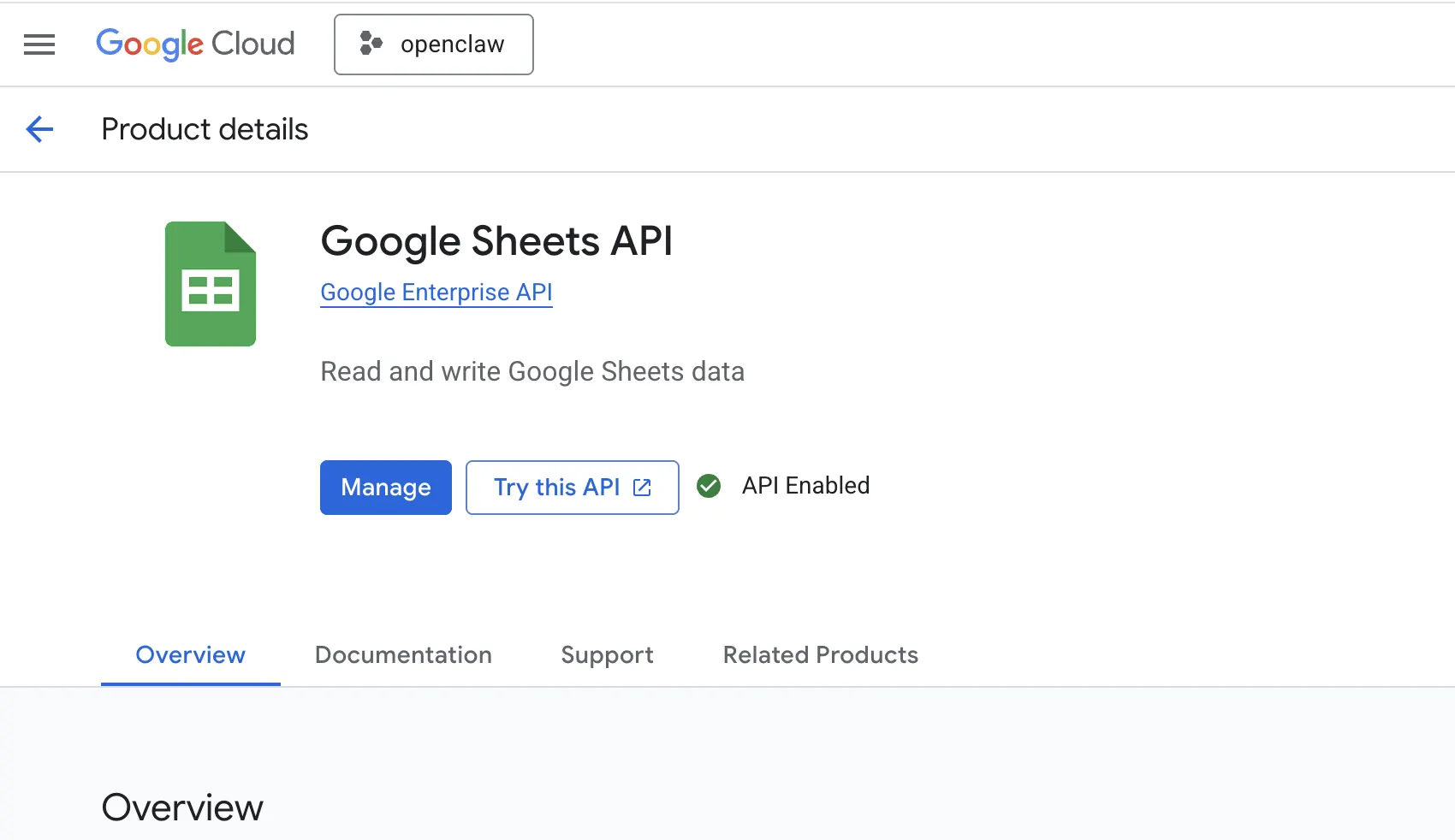
- Enable APIs: OpenClaw is powerful and needs access to more than just email to be fully effective. Search for and enable the following APIs:
- Gmail API
- Google Calendar API
- Google Drive API
- Google Docs API
- Google Sheets API
Step 2: Create OAuth Credentials
Next, you need to create the "keys" that OpenClaw will use to unlock your Google account.
- Navigate to APIs & Services > Credentials.
- Click Create Credentials and select OAuth client ID.
- Application Type: Choose Desktop app.
- Download JSON: Once created, download the JSON file containing your credentials. You will need to place this file in your OpenClaw workspace so the system can reference it. eg here:
~/.config/google/<credientials.json>
Step 3: The "Gotcha" – Publishing Your App
This is where many users get stuck. By default, Google sets your app to "Testing" mode. However, in my experience, Test mode wouldn't work reliably for this integration.
To fix this, you must set the app to Production:
- Go to Google Auth Platform (OAuth consent screen).
- Look for the Publishing Status.
- Click to Publish App (push to Production).
- Set the Audience to Production.
- You may need to visit the Verification Center, but for personal use, you can often proceed even if the app isn't verified by Google yet.
Step 4: Authorize with gog
Once your Google Cloud project is configured and "Published," you need to perform the actual handshake to connect OpenClaw and Gmail on your local machine.
Use the gog tool to initiate the authentication:
Bash
gog auth add <email>
Replace < email > with the address of the Google account you are connecting.
This will trigger the OAuth flow. You will likely see a warning that the app is "unsafe" (because you just created it and haven't verified it with Google). This is normal for personal projects — you can safely ignore it and approve the permissions.
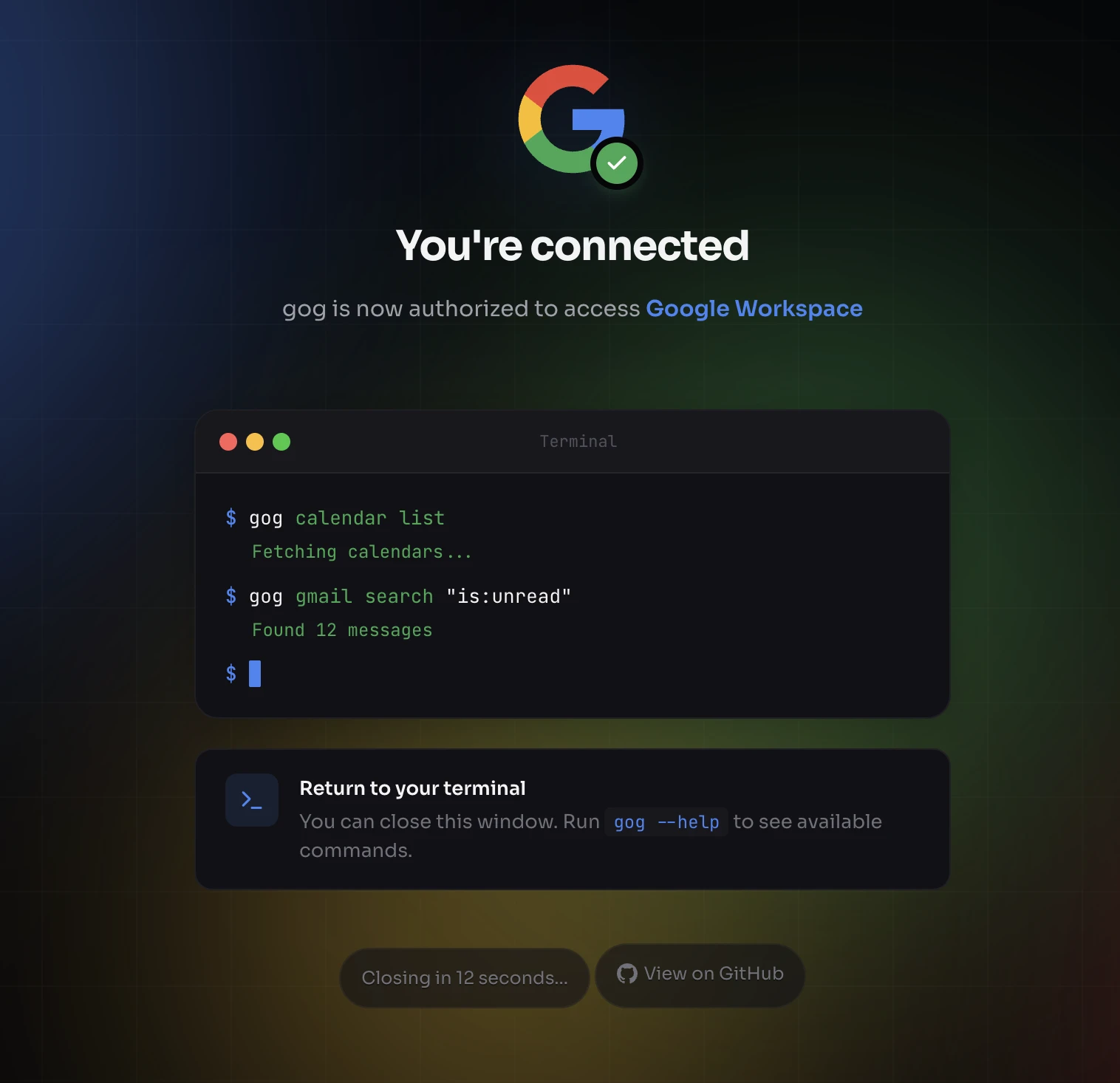
You can test it and see if its making api calls in google console
Summary of Advanced Setup
If you need real-time features (like OpenClaw reading emails the second they arrive), you might eventually look into Pub/Sub push notifications. This involves using the openclaw webhooks gmail run wizard to set up a Tailscale Funnel and webhooks.
However, for most users, simply getting the basic API connection working is the biggest hurdle. By switching your Google App to "Production" immediately, you save yourself the headache of failed test-mode tokens.
Want help connecting OpenClaw to Google? Get your free AI consultation and we can hold your hand through the setup.
Resources:
- https://setupopenclaw.com/blog/openclaw-gmail-integration.html
- https://www.digitalocean.com/resources/articles/what-is-openclaw
- https://en.wikipedia.org/wiki/OpenClaw
- https://openclaw.ai
- https://www.youtube.com/watch?v=9AxdzsVkMLI
- https://setupopenclaw.com/blog/openclaw-gmail-integration
- https://docs.openclaw.ai/automation/gmail-pubsub
- https://docs.ollama.com/integrations/openclaw
- https://zenvanriel.nl/ai-engineer-blog/openclaw-gmail-pubsub-automation-guide/
- https://amankhan1.substack.com/p/how-to-get-clawdbotmoltbotopenclaw
Frequently Asked Questions (FAQ)
General Setup
Is OpenClaw a standalone Gmail app?
No, OpenClaw is an open-source AI assistant that integrates with Gmail via the Gmail API to perform tasks like summarizing or automating emails.
What are the system requirements?
OpenClaw runs on Mac, Windows, and Linux. You will need a Google Cloud project and tools like gcloud and gogcli for advanced features.
Why should I use a new Gmail account for the install?
Starting with a fresh account is highly recommended to isolate permissions and prevent potential security or configuration errors from affecting your primary data during the initial setup.
Troubleshooting Google Cloud & OAuth
Why isn't "Test Mode" working for my credentials?
In many setups, Google's "Test Mode" fails to authorize properly with OpenClaw. You must manually "Publish" the app to Production status in the Google Auth Platform to ensure the OAuth flow completes successfully.
What should I do if I get an "Unsafe App" warning?
Because you are creating your own internal API project, Google will flag it as unverified. You can safely ignore this warning and proceed to approve the permissions for your own project.
Which APIs do I need to enable?
While the Gmail API is required for email tasks, you should also enable the Calendar, Drive, Docs, and Sheets APIs to allow OpenClaw full cross-functional capabilities.
Advanced Features
Can OpenClaw respond to emails in real-time?
Yes, by using the openclaw webhooks gmail run wizard, you can set up Pub/Sub push notifications that trigger AI actions as soon as a new email arrives.
How do I link OpenClaw to other apps like WhatsApp?
You can configure hooks within the OpenClaw configuration file to deliver Gmail notifications or summaries to external chat platforms.
Published by Superconscious AI Agency on 2026-02-02. For more AI insights, follow our AI Strategy Blog.