How to Shutdown OpenClaw: Stop the Background Service and Save Tokens
TL;DR: OpenClaw operates as a persistent background daemon, which means it continues to burn tokens even after you close your terminal window. To immediately stop it on macOS, you must unload the background service using
launchctl unload ~/Library/LaunchAgents/com.clawdbot.gateway.plistor stop the Docker container if you used that installation method.

Introduction
You dove straight in and installed OpenClaw (formerly Moltbot/ClawdBot) because the buzz was everywhere—Twitter, GitHub, and tech circles. You played around with it, explored its capabilities, and then decided to close your terminal, assuming the tool would exit like most CLI tools.
However, you might have noticed that the web UI continues working, or worse, your tokens are still being consumed. The reality is that OpenClaw installs itself as a persistent background service (a daemon). It keeps running even after you close your terminal and automatically restarts on login, which is great for a 24/7 assistant but terrible when you want to stop the costs.
Key Points
-
Persistent Daemon: OpenClaw runs in the background and restarts on login; closing the terminal does not stop it.
-
Token Consumption: Because the service persists, it may continue running "skills" or maintaining context that burns API tokens unexpectedly.
-
Clean Shutdown: Standard uninstall commands may not work; you need to specifically unload the LaunchAgent or stop the Docker container.
Understanding the Background Service
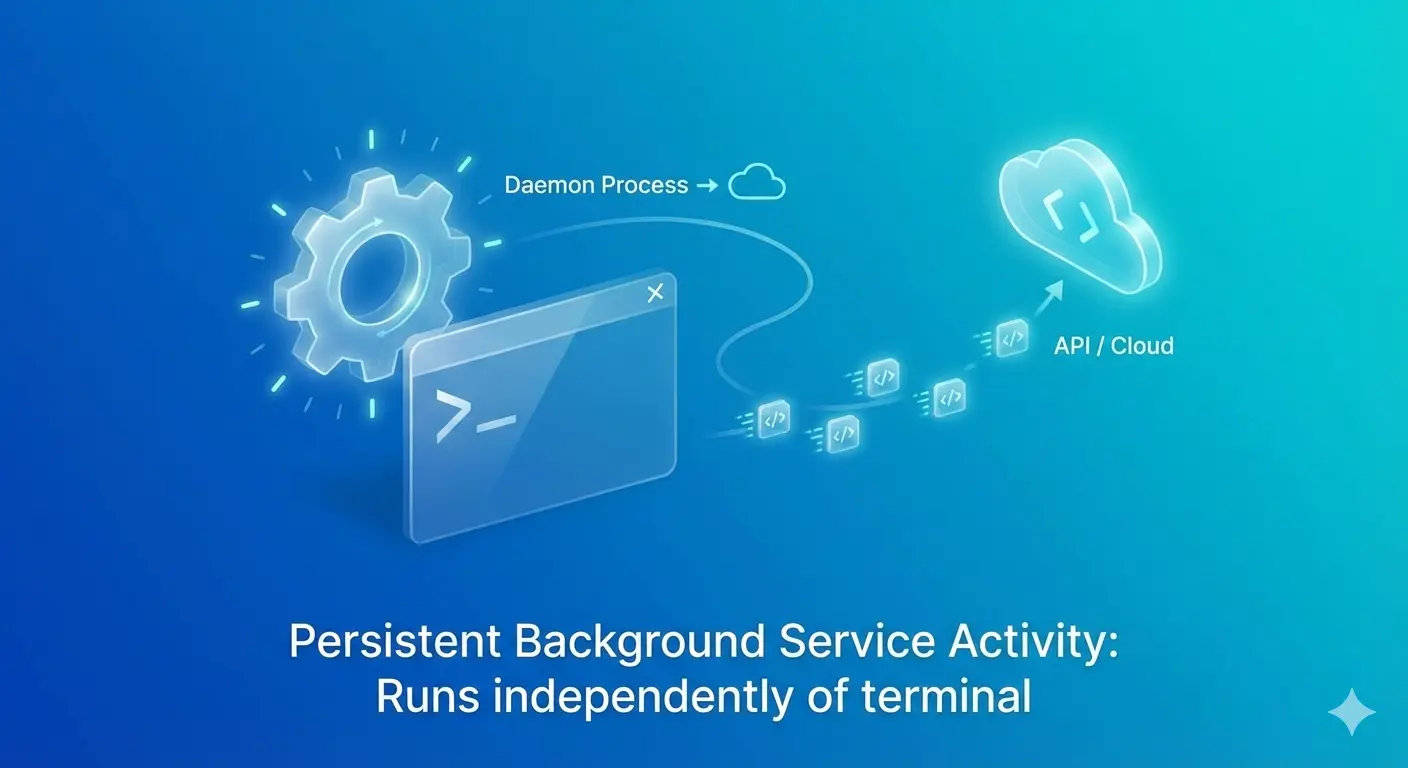 When you install OpenClaw using the default one-liner, it creates a LaunchAgent at
 ~/Library/LaunchAgents/com.clawdbot.gateway.plist on macOS. This setup ensures the assistant is always available, but it also means the process is decoupled from your active terminal session. To stop the costs, you must target this background process directly.
Implementation Strategy (macOS/Linux)
If you installed OpenClaw via the terminal on macOS, use launchctl to manage the service.
To immediately stop the background process, run:
Bash
launchctl unload ~/Library/LaunchAgents/com.clawdbot.gateway.plist
To disable auto-start so it doesn't return after a reboot:
Bash
launchctl disable gui/$(id -u)/com.clawdbot.gateway
To verify it is actually gone:
Bash
launchctl list | grep clawd
If nothing shows up, the service is successfully stopped.
Best Practices for Docker and Skills
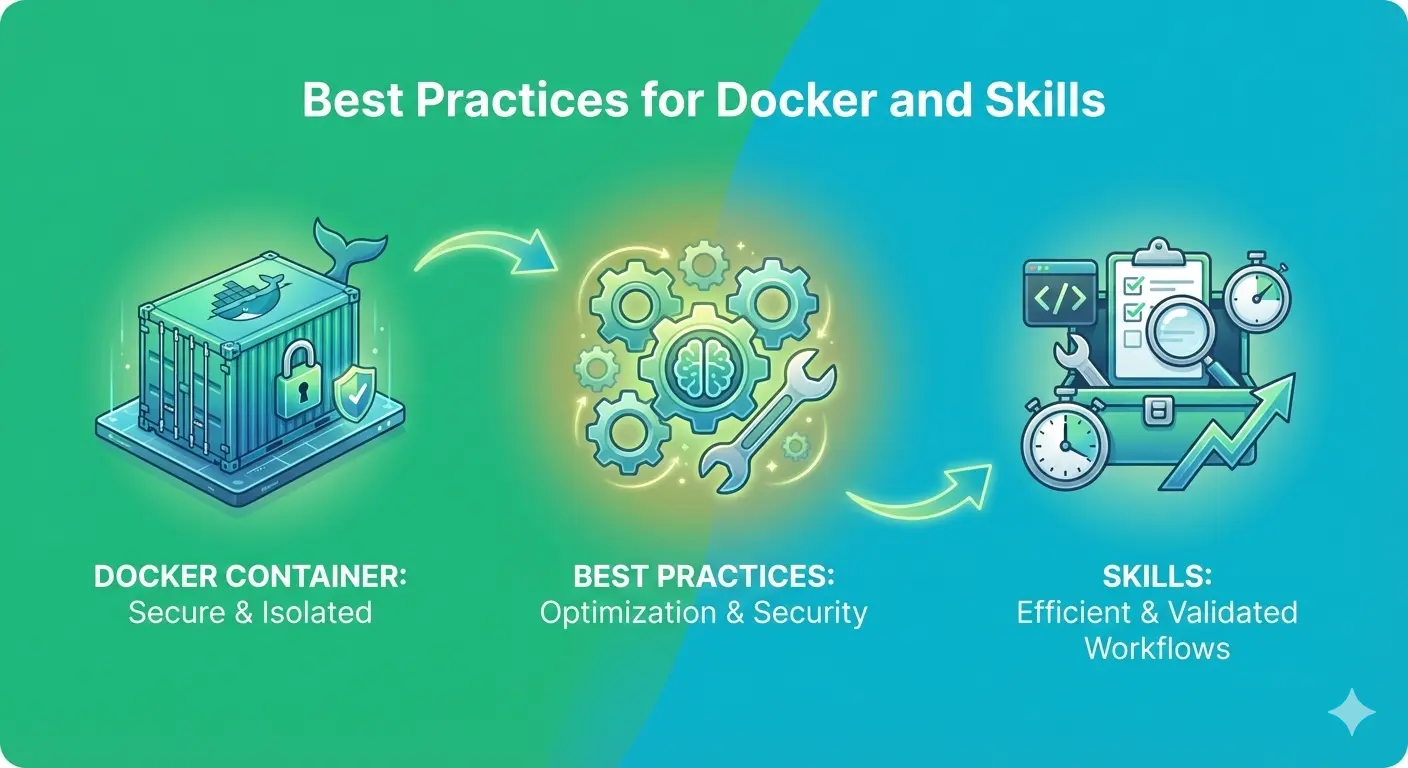 If you followed security best practices and ran OpenClaw in Docker, you simply need to stop the container:
Bash
docker stop <container_id_or_name>
Additionally, if you can still access the interface, check the Skills tab. OpenClaw might be running specific skills that consume tokens. You should hit "disable" on active skills and wait for the "Health Ok" indicator to turn green, ensuring the server has restarted and the skill is inactive.
Practical Examples
Example 1: The "Soft" Shutdown (Re-enabling Later)
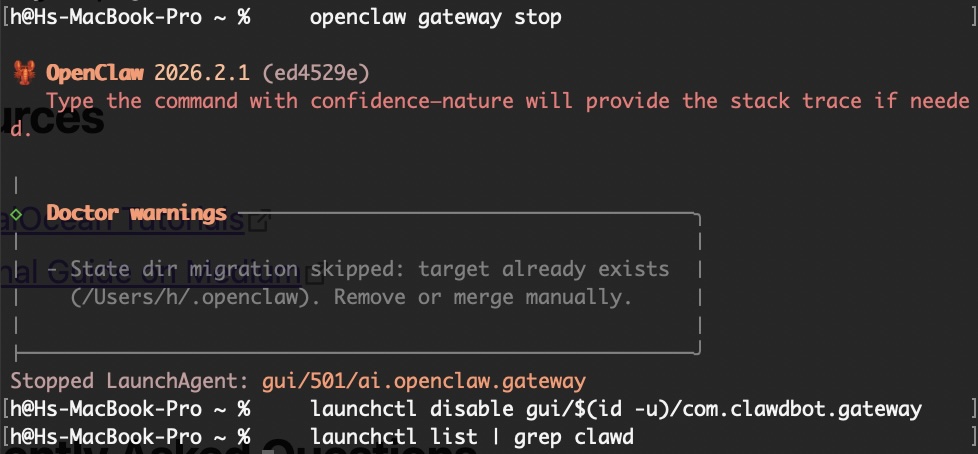 If you just want to pause OpenClaw temporarily without uninstalling it, use the unload command mentioned above. When you are ready to use it again, you can bring it back to life with:
Bash
launchctl enable gui/$(id -u)/com.clawdbot.gateway
launchctl load ~/Library/LaunchAgents/com.clawdbot.gateway.plist
Example 2: The Clean Uninstall
If you want to remove the tool completely to ensure it never restarts:
-
Remove the configuration directory:
~/.moltbotor~/.openclaw. -
Delete the plist file:
rm -f ~/Library/LaunchAgents/com.clawdbot.gateway.plist. -
Remove the application folder:
rm -rf /Applications/OpenClaw.app.
Key Takeaways
-
Stop the Service, Not Just the Terminal: Closing the window does not kill the OpenClaw daemon; use
launchctl unload. -
Verify Shutdown: Always run
launchctl list | grep clawdto confirm the process is dead and your tokens are safe. -
Manage Costs: Set a daily hard cost limit on your provider (e.g., Anthropic, OpenAI) to prevent accidental overspending if a background service runs wild.
Conclusion
OpenClaw is a powerful tool, but its persistent nature can lead to unexpected costs if not managed correctly. By manually unloading the LaunchAgent or stopping the Docker container, you can ensure the assistant sleeps when you do. Always verify the process is gone to keep your API usage under control.
Want help with OpenClaw or Autonomous Agents? Get your free AI consultation and discover how Superconscious AI Agency can help you achieve significant productivity improvements.
Resources
Frequently Asked Questions
Why is OpenClaw still running after I closed the terminal?
OpenClaw installs as a background daemon (LaunchAgent on macOS) to act as a 24/7 assistant, meaning it operates independently of your terminal session.
How do I turn OpenClaw back on after stopping it?
You can re-enable it by running launchctl load ~/Library/LaunchAgents/com.clawdbot.gateway.plist in your terminal.
Can I limit the costs without stopping the service?
Yes, you can configure your AI provider (like Anthropic or OpenAI) to have a daily hard cost cap (e.g., $10/day) or use commands like /clear or /compact to reduce context window usage.
Would you like me to create a quick "cheat sheet" image for these terminal commands to go along with the blog post?
Published by Superconscious AI Agency on 2026-02-04. For more AI insights, follow our AI Strategy Blog.